
Serato Set Prep: From Crate to a Perfectly Crafted DJ Mix
Reviewed 9 November 2026
Prepare your tracks in Serato. Perfect every transition on a timeline. Create a DJ mix that sounds exactly the way you want.
Preparing a DJ set in Serato involves analyzing tracks, correcting beatgrids, setting cue points, and organizing crates. But preparing a live performance and producing a polished recorded mix are two different workflows.
If you’re creating a promotional DJ set, radio show, podcast, or mix for YouTube or Mixcloud, you want precise beat alignment, seamless transitions, consistent sound, and control over the final result.
This guide explains how to prepare your set in Serato, then choose between recording live and producing your mix on an editable timeline.
The Serato Set Prep Checklist
Before building your mix:
- Analyze your tracks to generate BPM information, waveforms, and beatgrids.
- Check beatgrid accuracy at the beginning, middle, and outro.
- Correct and lock beatgrids to protect manual adjustments.
- Create cue points for intros, drops, breakdowns, and mix-out locations.
- Enable Quantize for accurate cue triggering.
- Organize your tracks using the Prepare panel and permanent crates.
- Plan your set’s energy around musical flow, BPM, key, and phrasing.
- Rehearse difficult transitions using Serato Practice Mode.
- Choose your workflow: record live or build a timeline mix.
- Review the final recording before publishing.
Step 1: Analyze Your Music in Serato
Serato’s Analyze Files feature prepares waveform information and can detect BPM and beatgrids.
Start by adding your local music files to the library and running analysis. Review unusual BPM values, especially tracks detected at half or double their expected tempo.
Automatic analysis isn’t always perfect. Unusual intros, tempo changes, or rhythmic sections can confuse beat detection.
Important: Re-analyzing unlocked tracks may overwrite manually corrected beatgrids. Lock tracks after verifying their timing.
Official Serato Guide: Preparing Your Files
Step 2: Check, Fix, and Lock Your Beatgrids
Accurate beatgrids are essential for precise beatmatching and reliable transitions.
A beatgrid identifies the timing structure of a track, helping software recognize beats and bars. However, a grid that looks correct at the beginning may drift later.
Check three locations:
- Intro: Does the grid align with the first meaningful downbeat?
- Middle: Does alignment remain correct after breakdowns?
- Outro: Is the grid accurate where you intend to transition?
Use Serato’s Edit Grid controls to correct misalignment. Once the grid is accurate, lock the track to protect your adjustments.
This preparation becomes particularly valuable when transferring beatgrid information into compatible timeline-based software.
Official Serato Guide: Beatgrids in Serato DJ Pro
Step 3: Set Cue Points and Enable Quantize
Cue points identify important musical moments before performing or producing a mix.
Useful cue locations include intros, first kicks, drops, breakdowns, vocal entrances, outros, and preferred mix-out points.
Use consistent names and colors so your tracks remain easy to navigate.
Why Quantize Matters
Serato’s Quantize feature can align supported cue and loop actions with the beatgrid.
This helps maintain accurate musical timing, but depends on a correctly configured grid. An incorrect beatgrid can produce incorrectly aligned actions.
Official Serato Guide: Quantize
Step 4: Organize Your Set With Crates
Serato provides two useful tools for organizing tracks: the Prepare panel and crates.
The Prepare panel is a temporary selection area for tracks you’re considering. It’s useful for testing combinations and maintaining a shortlist during a session.
Crates are saved collections you can return to later. For example, create crates for a Friday Radio Show, Deep House Promotional Mix, Warm-Up Selection, or Main Set.
Use subcrates to organize variations, and Smart Crates for collections based on defined rules.
Official Serato Guide: Prepare Panel
Plan Your Energy Curve
A great DJ mix involves more than matching BPM. Think about the listening experience you’re creating:
Warm-up → Build → Peak → Landing
Consider musical key, phrasing, energy, and how each song connects to the next. A carefully planned sequence gives your mix direction and helps transitions feel intentional.
Step 5: Rehearse in Serato Practice Mode
Practice Mode allows you to rehearse two-deck mixing without compatible DJ hardware connected.
Use it to test track combinations, cue point timing, tempo differences, musical phrasing, and difficult transitions.
Can You Record in Practice Mode?
No. Serato’s built-in recording function is unavailable in Practice Mode.
To record directly in Serato DJ Pro, you need an eligible license or compatible hardware configuration that supports recording.
No hardware at all? How to make a DJ mix without a controller compares the three ways to do it with just a laptop.
Official Serato Guide: Practice Mode
Turning Your Serato Preparation Into a Finished DJ Mix
You’ve analyzed your tracks, corrected beatgrids, organized crates, and prepared cue points. Now comes the important decision:
Do you want to capture a live performance, or carefully craft the final recording?
| Feature | Live Serato Recording | Timeline Workflow |
|---|---|---|
| Main approach | Perform in real time | Arrange and refine |
| Beat alignment | Managed during performance | Precisely adjustable |
| Transitions | Recorded as performed | Individually editable |
| Effects | Applied live | Editable and reusable |
| Fixing mistakes | Audio editing or re-recording | Adjust the affected section |
| Best suited for | Capturing performances | Polished, published mixes |
Option A: Record Your Mix Live in Serato
Live recording captures the energy and spontaneity of an actual DJ performance. You work with decks, faders, EQ, cue points, and effects in real time.
With a supported Serato DJ Pro recording setup:
- Connect compatible DJ hardware.
- Open the REC panel.
- Select the appropriate recording source.
- Check your audio levels.
- Record your performance.
- Stop and save the finished mix.
Recording restrictions apply when streaming-service tracks are loaded.
Official Serato Guide: Recording Audio
The Limitation of Live Recording
Imagine recording a 60-minute promotional mix. Everything sounds great until one transition begins to drift. The beats lose alignment, or an effect doesn’t sound right. That mistake becomes part of the recording.
You can edit the resulting stereo audio file in a DAW, but individual fader movements, effects, and transition decisions aren’t automatically preserved as editable automation. Sometimes a mistake can be repaired. Other times, you’ll need to rebuild or re-record part of the set.
For a live performance, small imperfections may be acceptable. For a carefully produced promotional recording, you may want greater precision.
Option B: Create a Precisely Crafted Mix on a Timeline
Choose a timeline workflow when you want a polished, professional-sounding DJ mix where every transition is carefully crafted, beats are precisely aligned, and you have control over the final result.
Timeline mixing is especially valuable for promotional DJ sets, published mixes, radio shows, podcasts, mashups, and professional prerecorded DJ sets: situations where seamless transitions, precise timing, musical flow, and sound quality matter.
Precise Beat Alignment
A timeline lets you inspect where tracks overlap and how their beats align. With accurate beatgrids and suitable tempo processing, you can minimize timing drift and create more consistent transitions. Instead of relying exclusively on real-time decisions, you can adjust placement, listen, and refine.
Complete Control Over Transitions
Not every pair of songs should be mixed the same way. Some transitions benefit from gradual blends. Others need a short, controlled change, a carefully timed drop, or a creative effect. A timeline lets you shape each transition individually.
Refine Until It Sounds Right
Imagine finishing a one-hour mix and discovering that the transition at minute 37 needs improvement. With a timeline workflow, you can return to that location, adjust the transition, and listen again. There’s no need to record the entire set again.
Live mixing captures the performance. Timeline mixing lets you craft the final recording.
Bring Your Serato Library Into MixTape
You’ve already invested time preparing your Serato library. Why start from scratch? MixTape is a timeline-based DJ studio designed for creating and refining prerecorded mixes.
One-Way Serato Library Import
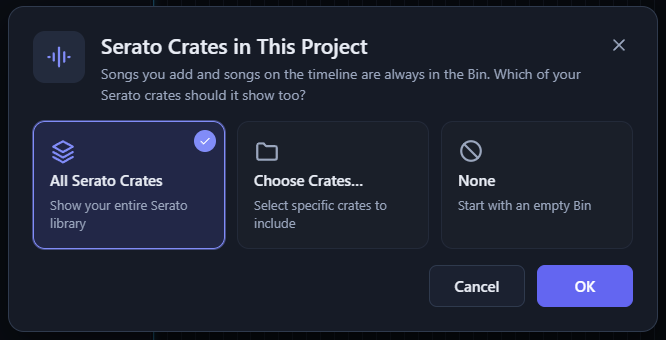
MixTape supports importing:
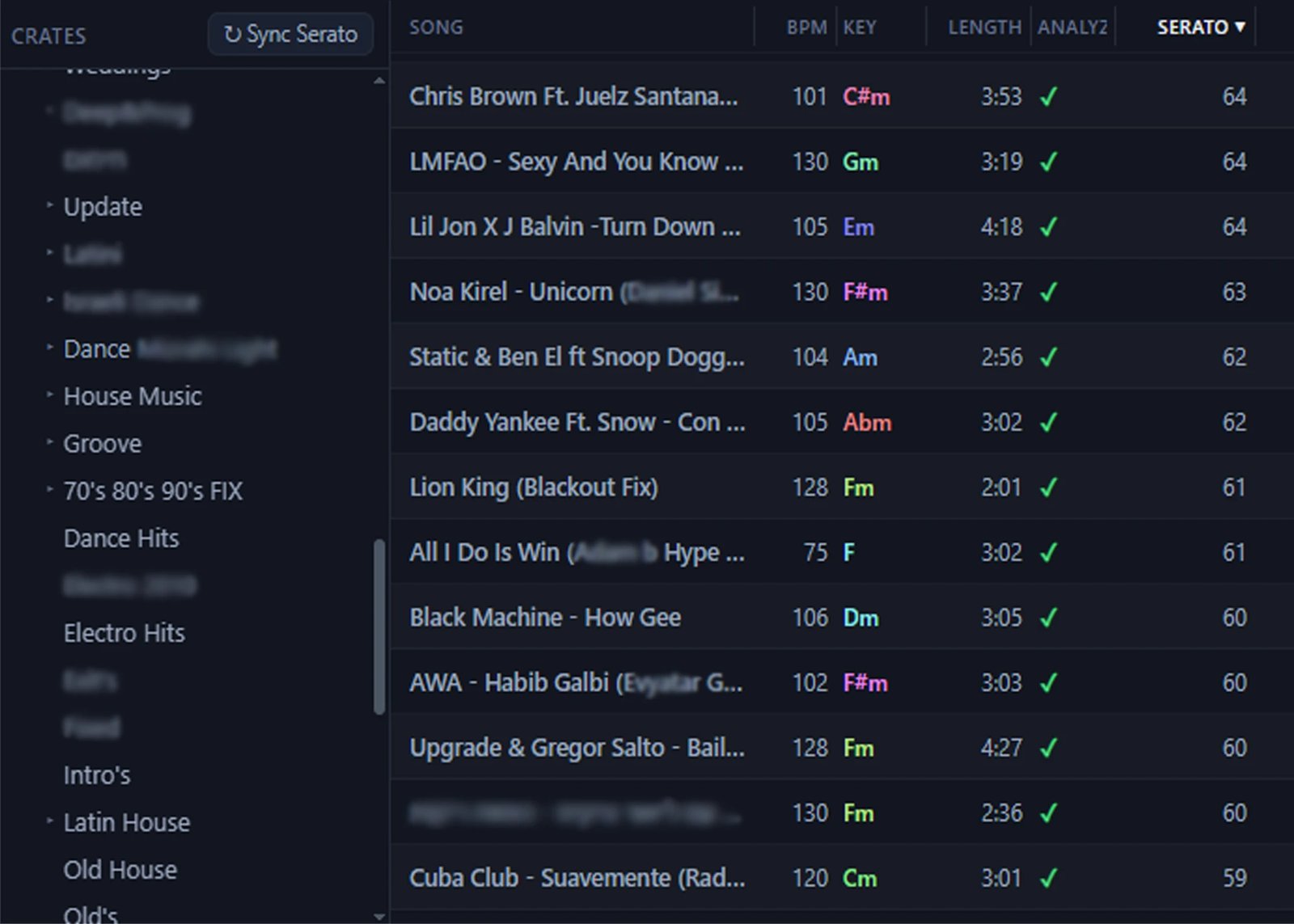
- Crates, subcrates, and their order
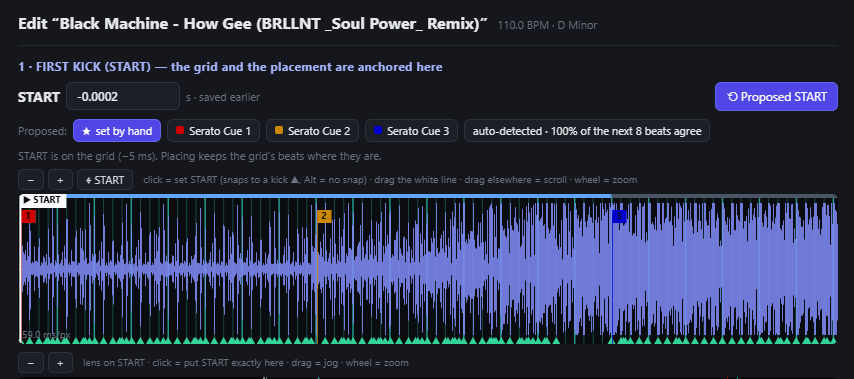
- Beatgrids and cue points
- Musical key
- Play counts and comments
Your original Serato library remains unchanged. This is a one-way import, not two-way synchronization. MixTape does not write changes back to Serato.
Arrange Tracks on a Timeline
Drag your prepared tracks onto the MixTape timeline and arrange them in your preferred order. Work visually with track placement, overlaps, and transitions.
Shape Every Transition
MixTape provides tempo adjustments, effects, and transition automation. You can create custom effects, edit existing effects, and save them for reuse. For example, apply an Outro effect to an outgoing track and an Intro effect to the next track, then refine how they interact.
More Creative Control With Stems
MixTape also supports stem separation, allowing you to work with individual musical elements such as vocals, drums, bass, and other instruments. This opens up creative possibilities for custom transitions, mashups, and greater control over how tracks interact.
You can use stems selectively when you need them rather than processing every imported track automatically. As with other stem-separation tools, results depend on the source material and may contain audible artifacts.
Work With Different BPMs
Tracks don’t always share the same tempo. MixTape provides tempo-adjustment tools that allow you to experiment with changes between songs. Accurate results depend on beatgrid quality, tempo processing, and the original audio.
Export Your Finished Mix
MixTape supports multiple export formats:
| Format | Options |
|---|---|
| MP3 | 192, 256, 320 kbps |
| WAV | 16-bit, 24-bit |
| FLAC | 16-bit, 24-bit |
| CUE sheet | Optional |
Auto Gain brings the mix to −14 LUFS, with a limiter catching the peaks. These features help control the exported audio but aren’t a substitute for a complete mastering process.
Projects are stored locally as .mix files. Mixing and exporting work offline after initial activation and required downloads; MixTape goes online at least once a week to renew its licence.
MixTape is free during the beta.
Which Workflow Should You Choose?
Choose Live Recording When the Performance Matters Most
Live recording is ideal for capturing spontaneous decisions, real-time mixing, and the atmosphere of a DJ performance. It documents what happened in the moment. Small imperfections can be part of the experience.
Choose Timeline Mixing When Sound Quality and Precision Matter Most
Choose a timeline workflow when you want a professional, carefully produced DJ mix with precise beat alignment, seamless transitions, and control over the final sound.
It’s especially suited to promotional DJ sets, radio shows, podcasts, mashups, and mixes published online. Instead of depending on everything going perfectly during one performance, you can refine each transition until it sounds exactly how you intended.
The goal isn’t simply to fix mistakes. It’s to create the best-sounding version of your mix.
Frequently Asked Questions
How do I prepare a DJ set in Serato?
Analyze your music, verify and lock beatgrids, create cue points, organize tracks into crates, and rehearse difficult transitions in Practice Mode.
Can I record in Serato Practice Mode?
No. Practice Mode supports rehearsal without compatible DJ hardware, but Serato’s built-in recording feature is unavailable in that mode.
Can I edit a Serato recording?
Yes, using an audio editor or DAW. However, an ordinary stereo recording doesn’t preserve individual fader movements, effects, and transitions as independently editable automation.
Why use timeline DJ software?
Timeline software provides greater control over track placement, beat alignment, tempo changes, effects, and individual transitions. It’s particularly useful for producing polished recorded DJ sets.
Can timeline mixing prevent beat drift?
Accurate beatgrids and timeline-based alignment can significantly reduce timing drift. Results still depend on the source material and tempo-processing quality.
Can MixTape import Serato cue points and beatgrids?
Yes. MixTape supports one-way import of Serato beatgrids, cue points, crates, and supported track metadata.
Does MixTape modify my Serato library?
No. MixTape reads supported Serato library information without writing changes back.
Does MixTape support Rekordbox?
Rekordbox integration is planned but isn’t currently available.
Is MixTape free?
MixTape is free during the beta. Registration and approval are required.
Does MixTape work on Windows and Mac?
Yes. MixTape supports 64-bit Windows 10/11 and Apple Silicon Macs running macOS 13 or later. Intel Mac support is planned.
Why I Built MixTape
I spent years DJing, and I know how frustrating it can be to record an entire set only to discover that one transition doesn’t sound the way you wanted.
I built MixTape to give DJs more control over the final result, to create precise, polished mixes without having to record the entire performance again every time something needs adjusting.
It’s not about replacing live DJing. It’s about giving DJs another way to create mixes they’re proud to share.
Yossi Rubin, Creator of MixTape
Turn Your Serato Preparation Into a Professional DJ Mix
You’ve prepared your tracks, corrected your beatgrids, placed your cue points, and organized your crates. Now take that preparation further.
With MixTape, you can bring your Serato library into an editable timeline, build precisely controlled transitions, experiment with effects and stems, and refine your set before exporting.
Because a great DJ mix isn’t just about choosing the right tracks. It’s about making every transition count.
Build Your Next Mix With MixTape
Free during the beta. Registration and approval required.
Watch MixTape in Action · Video Tutorials · Download MixTape · Documentation
Serato is a trademark of its respective owner. MixTape is an independent product and is not affiliated with or endorsed by Serato.