
MixTape Tutorial: Your First DJ Mix
A beginner’s walkthrough of MixTape’s visual timeline. In under five minutes you go from an empty project to two songs mixed into each other: placed on the beat, joined by a ready-made transition, with the tempo moving smoothly from one song’s BPM to the next.

Chapters
What You’ll Learn
- Create a new MixTape project
- Optionally bring in your tracks and crates from Serato DJ
- Add tracks to the Media Bin
- Place songs on the timeline
- Find and mark the first kick (START)
- Apply Intro and Outro effects
- Make a smooth Master BPM transition
Step by Step
- Create a new project. Start one from the start screen, or later with File ▸ New (Ctrl+N). MixTape asks which of your Serato crates the project shows: all of them, the ones you pick, or none.
- Bring in your Serato library (optional). Your Serato crates appear in the Media Bin with their songs, and each song keeps its Serato beatgrid, cue points, BPM, key and play count. Serato is only read, never changed. Without Serato, drop audio files on the Media Bin or use + Add.
- Place the first song. Drag a song from the Media Bin onto the timeline. The placement window asks for the song’s first kick (START), and uses the song’s Serato cue points and grid when it has them. Check it by ear, then place the song.
- Add the second song. Drag the next song onto the timeline, mark its first kick the same way, and place it where it should come in. It comes in as a straight cut; the transition comes next.
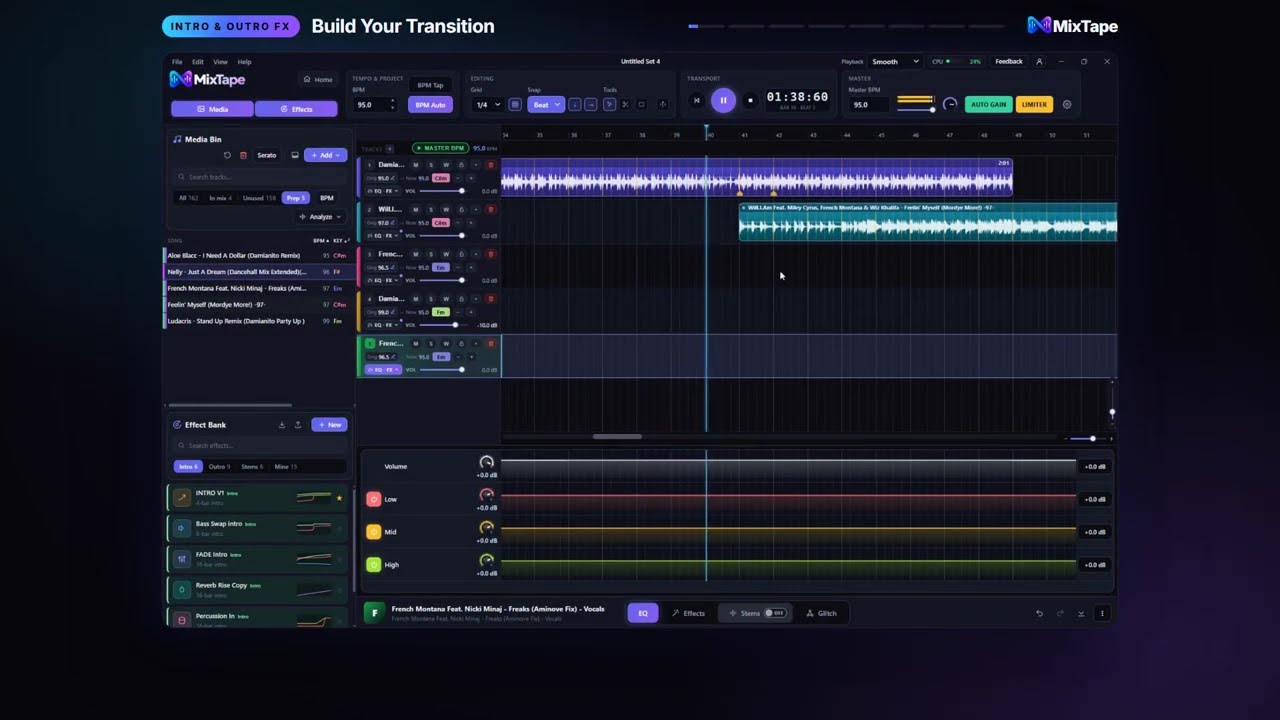
- Create your first transition. From the Effect Bank, drag an Intro effect onto the incoming song and an Outro effect onto the outgoing one. Each effect shows in its clip as a soft region; open the track’s EQ · FX to see its automation lanes and adjust them.
- Smooth the BPM change. Every track follows the master tempo. In the Master BPM lane above the tracks, add a point where the change begins and another where it ends (right-click ▸ “Add BPM point here…” offers the incoming song’s BPM), so the tempo glides from one song to the next instead of jumping.
Learn More
More Tutorials
MixTape Tutorial: Selective Stems & Creative DJ Transitions
Separate stems from just part of a song, mute drums or bass where two songs overlap, move vocals to their own track and shape the transition with FX automation.
- Prepare the outgoing song with an Outro effect
- Separate stems from a selected stretch of a song, not the whole track
- Mute the outgoing song’s drums and the incoming song’s bass
- Drag a vocal stem onto a track of its own
Ready to Build Your Own Mix?
Put these techniques into practice with MixTape, the timeline DJ studio for Windows and Mac.
Free during the beta. Registration and approval required.