How to Make a DJ Mix Without a Controller (3 Methods Compared)
Published 17 November 2026
You don’t need a DJ controller to make a DJ mix. A laptop and the right software are enough. Which software depends on one thing: whether you want to practise mixing live, or to end up with a finished recording.
There are three practical ways to do it:
- Traditional DJ software, played with the keyboard and mouse.
- A digital audio workstation (DAW) such as Ableton Live.
- A timeline-based DJ application such as MixTape or DJ.Studio.
A controller mainly gives you hands-on control, convenient cueing and a practical way to perform live. Here is what each method does well without one, and where it falls short.
First, Decide What You’re Making
The two goals look alike and need different tools.
Goal A
Practising or performing live
You want the skills of mixing in real time: beatmatching, EQ, cueing, phrasing. Traditional DJ software is generally the best fit.
Goal B
Creating a finished recorded mix
You want a polished recording for SoundCloud or Mixcloud, a radio show, a promotional set, a podcast or a mashup. A DAW or a timeline DJ application may suit you better.
The difference shows when something goes wrong. In a live take, a transition that drifts is part of the recording. On a timeline, you correct that one transition without recording the whole set again.
Three Ways to Make a DJ Mix Without a Controller
| Method | Best For | Learning Curve | Recording or Export | Fixing Mistakes | Example Software |
|---|---|---|---|---|---|
| Traditional DJ software, with keyboard and mouse | Practising and performing in real time | Moderate: you learn beatmatching and EQ as you play | A recording of the take, where the software and plan allow it | Play it again, or edit the recording elsewhere | Serato DJ Lite, rekordbox, VirtualDJ, Mixxx |
| A DAW | Detailed editing and production work | Steeper: a general music tool, set up for DJ mixes by hand | The arrangement, exported as an audio file | Change the clip or its automation, then export again | Ableton Live |
| Timeline DJ software | Arranging and refining a prerecorded DJ set | Shorter for DJ work, with fewer general production tools | The finished mix, exported as one file | Adjust that one transition, then export again | MixTape, DJ.Studio |
None of the three is the better one. They answer different questions.
Before You Start: Prepare Your Music
Whichever method you choose, the same preparation pays off.
- Choose 10 to 20 tracks that you know well.
- Use good-quality audio files that you have the right to use.
- Check BPM and key. Songs close in tempo and compatible in key blend more easily.
- Find the transition points: intros, outros and breakdowns.
- Count beats, bars and phrases. A transition that starts on a phrase sounds intended.
- Plan the energy: where the set starts, peaks and lands.
- Use wired headphones when accurate monitoring matters.
Streaming services are a special case: Serato and rekordbox both say recording can’t be used with streaming tracks. For a mix you mean to keep, work from audio files.
Serato users: the Serato set prep guide covers analysis, beatgrids, cue points and crates.
Method 1: DJ With Your Keyboard and Mouse
Most DJ software runs without hardware: two decks on screen, worked with the mouse and keyboard shortcuts.
- Serato DJ Lite is free, and its Practice Mode mixes two tracks on a laptop alone, with a crossfader, volume faders and tempo sliders.
- rekordbox lists mouse and keyboard control in its Free plan.
- VirtualDJ is free for non-professional use without a controller.
- Mixxx is free and open source, for Windows, macOS and Linux, with a keyboard mapping for both decks.
Sources: Serato DJ Lite, Serato Practice Mode, rekordbox plans, VirtualDJ licences, Mixxx, Mixxx manual
Your First Transition
- Load a track on each deck.
- Let the software analyse both, or read their BPM.
- Match the tempos.
- Start the incoming track at the start of a phrase.
- Turn the incoming track’s bass down.
- Blend the two with the volume and EQ controls.
- Swap the bass at a phrase change.
- Fade the outgoing track out over about 8 to 16 bars.
All of this works with a mouse, less conveniently: a mouse moves one control at a time, and a blend often wants two or three moving together.
Headphone Cueing
A laptop usually has one stereo output, and the Mixxx manual notes that a laptop’s headphone jack is not a second audio output. The options:
- Split cue with a DJ splitter cable: the mix on one side, the cue on the other. Mixxx and VirtualDJ document it; Serato documents it for Serato Play, a paid add-on.
- A USB audio interface with a second output.
- No separate monitoring: rely on waveforms, beatgrids and cue points.
Not every application supports every setup.
Can You Record the Mix?
Not in every free version.
| Software | Records a mix? | Notes |
|---|---|---|
| Serato DJ Lite | No | Serato says a set can’t be recorded directly from Lite. |
| Serato DJ Pro | Yes, with supported hardware | Not in Practice Mode, and not with streaming tracks loaded. |
| rekordbox | On paid plans | Listed for Core, Creative and Professional, not for Free. |
| VirtualDJ | Yes | Listed for every licence, the free home one included. |
| Mixxx | Yes | To WAV, FLAC or Ogg Vorbis, and to MP3 with an added encoder. |
From each maker’s own pages, checked 17 November 2026. Availability depends on the version or plan: Serato recording, rekordbox plans, VirtualDJ licences, Mixxx.
Advantages
- Good for learning traditional DJ skills.
- Suited to practising live transitions.
- The skills carry over to controllers and decks.
- Some of the software is free.
Limitations
- A mouse moves one control at a time.
- Headphone monitoring may be limited.
- Recording depends on the software and the plan.
- A serious mistake means another take, or editing the recording elsewhere.
Method 2: Build Your DJ Mix in Ableton Live
A DAW arranges a mix instead of playing it. In Ableton Live’s Arrangement View, music sits on a linear timeline: each song is a clip, clips overlap where songs blend, and the blend is drawn as automation.
- Create a new Live Set and switch to Arrangement View.
- Import your tracks.
- Put the songs on separate audio tracks, so two can overlap.
- Turn Warp on for each clip and choose its Warp Mode.
- Check each song against the grid, and correct it with Warp Markers.
- Overlap the songs where one should blend into the next.
- Draw volume and EQ automation across each overlap.
- Add effects where you want them.
- Export with Export Audio/Video.
Warping keeps songs in time. Live warps long samples automatically by default, and Warp Markers correct it where it is off. The right Warp Mode depends on the material: Ableton’s manual describes Complex and Complex Pro as suited to whole songs, at a higher processing cost.
Almost every mixer and device control can be automated, and the arrangement exports as WAV, AIFF, FLAC or MP3. That flexibility is the appeal. The cost is preparation: Live is a general production tool, so a DJ mix is set up by hand, song by song.
Sources: Arrangement View, Audio clips, tempo and warping, Automation, Exporting
Advantages
- Detailed audio editing.
- Flexible automation.
- A wide choice of processing.
- A non-destructive arrangement.
Limitations
- A steeper learning curve.
- More preparation by hand.
- Slow if you only want to order tracks and shape transitions.
Method 3: Create Your Mix Using a DJ Timeline
Timeline DJ software sits between the two. Like a DAW, it lays the whole set out visually and exports one finished recording. Like DJ software, it is built around songs, BPM and transitions.
MixTape and DJ.Studio both work this way (how they compare). MixMeister, an older timeline application, is at the end of its life (alternatives).
Example: Building a DJ Mix in MixTape
MixTape is a desktop timeline DJ studio for Windows and Mac, designed for creating prerecorded DJ mixes without requiring a controller.
- Step 1: Add your music. Drop MP3, WAV, FLAC, OGG, M4A or AAC files on the Media Bin. MixTape analyses each song on your own computer: tempo (BPM), key and beatgrid.
- Step 2: Place tracks on the timeline. Drag a song onto the timeline. The placement window asks for its first kick (START): check it by ear, adjust it, and place the song, so it sits on the grid.
- Step 3: Adjust the tempo. Every track follows one master tempo. Add two points in the Master BPM lane, and the tempo glides from one song’s BPM to the next instead of jumping.
- Step 4: Add Intro and Outro effects. From the Effect Bank, drag an Outro effect onto the outgoing song and an Intro effect onto the incoming one. Ready-made effects include FADE Intro, Bass Swap intro, Filter Sweep Out and EchoOut V1.
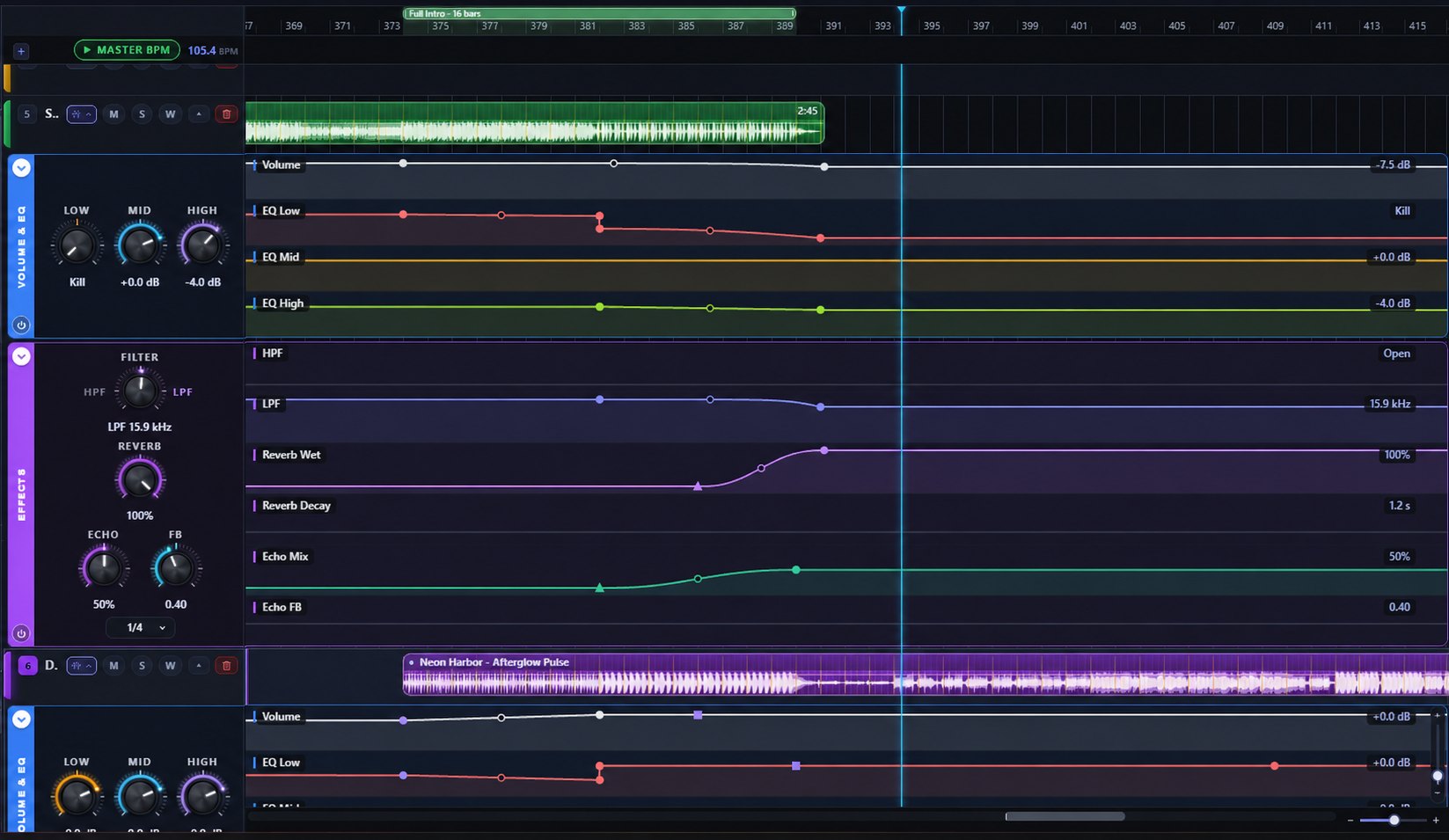
- Step 5: Customise the transition. A track’s EQ · FX shows the effect as automation lanes: volume, EQ, filters, echo and reverb. Click a lane to add a point and drag it. To build your own effect, + New opens the Effect Editor, a graph per parameter; Save to bank keeps it under Mine.
- Step 6: Selective stems (optional). Hold Ctrl (Cmd on a Mac) and drag across a stretch of a song, then press Separate Stems. Only that stretch is separated into vocals, drums, bass and other, on your own computer.
- Step 7: Export the finished mix. Export to MP3 (192, 256 or 320 kbps), WAV or FLAC (16 or 24-bit). Auto gain can bring the mix to −14 LUFS, with a limiter catching the peaks: loudness control, not a complete mastering process.
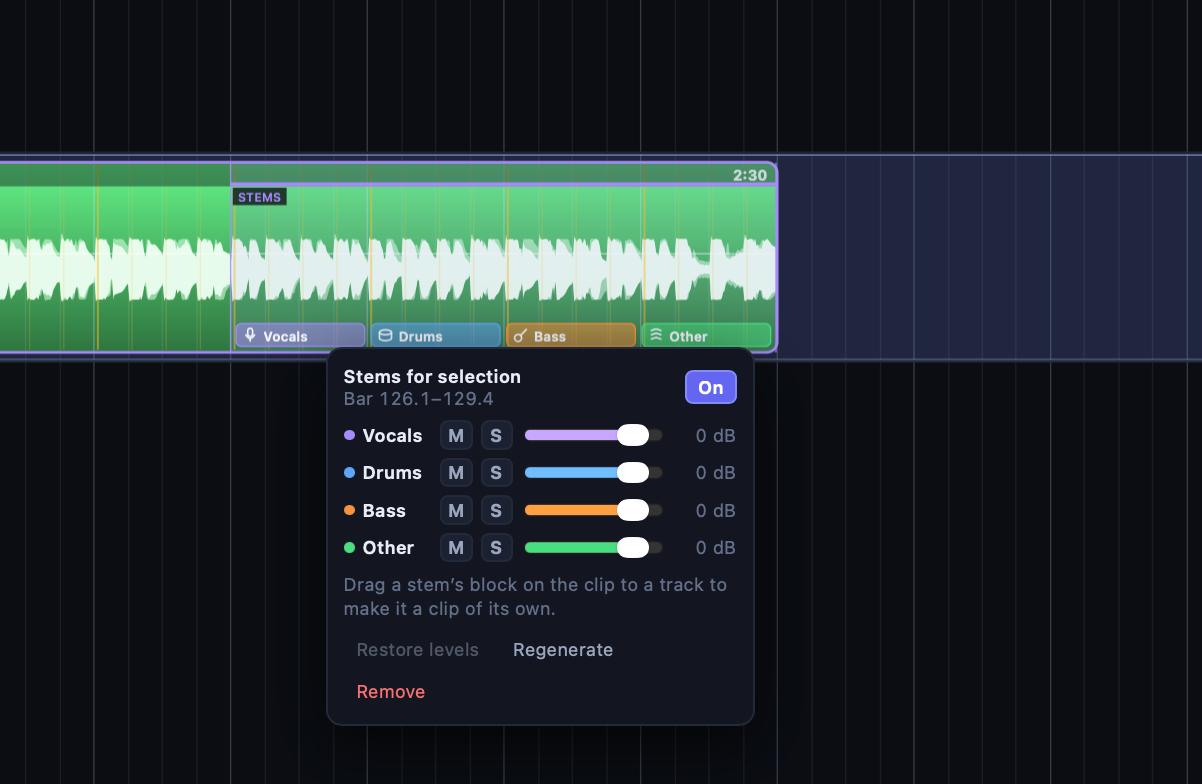
Separating only a stretch of a song lets you:
- Remove the drums from a transition.
- Mute one bassline, so two don’t overlap.
- Lift out a vocal phrase.
- Drag a separated stem onto another track.
- Trim and duplicate vocal clips.
- Build a more complex transition or a mashup.
Results depend on the song and can carry audible artifacts. See the selective stems tutorial.
If Your Library Is in Serato
MixTape can bring in your Serato crates, beatgrids and cue points. This is a one-way import: MixTape reads Serato’s files and never writes to them. Details in Serato set prep.
MixTape runs on Windows 10/11 (64-bit) and Apple Silicon Macs (macOS 13+). Intel Mac support is in progress; Linux is not supported. Free during the beta. Registration and approval required.
“After years of working with timeline-based mixing software, I wanted a modern way to refine a DJ set without recording the whole thing again because of one imperfect transition.”
Yossi Rubin, creator of MixTape. Read the story.
The Same DJ Transition, Three Different Ways
One transition, built three times: over 16 bars the incoming track takes over, and halfway through, the two tracks exchange their bass.
Method 1
Traditional DJ software
- Cue the incoming track on a phrase, tempo matched, bass down.
- Start it 16 bars before the outgoing track ends.
- Raise its volume over the first 8 bars.
- At bar 9, swap the bass.
- Fade the outgoing track out over the last 8 bars.
It happens once, in real time.
Method 2
Ableton Live
- Warp both songs to the project tempo.
- Overlap the two clips by 16 bars.
- Draw a volume ramp on each track.
- Automate the low band of an EQ on each track, crossing at bar 9.
- Listen, move the breakpoints, and export.
Every move is a line you drew, and can redraw.
Method 3
MixTape
- Place the incoming song 16 bars before the outgoing one ends.
- Drag an Outro effect onto one song and an Intro effect onto the other, each stretched to 16 bars.
- In EQ · FX, check that the two EQ Low lanes cross at bar 9.
- Drag any point that sounds wrong.
- Listen again, and export.
The effects bring the curves; you adjust them.
The three solve related but different problems:
- Traditional DJ software is about real-time performance.
- Ableton Live is about detailed production and editing.
- MixTape is a dedicated workflow for arranging and refining prerecorded DJ sets.
How to Prepare Your DJ Mix for Publishing
- Check every transition once more.
- Listen for clipping and distortion, especially where two songs overlap.
- Review the overall loudness, and keep the perceived volume consistent from song to song.
- Export at a suitable quality: a high-bitrate MP3 to upload, a lossless file to keep.
- Prepare a tracklist with timestamps.
- Read the platform’s rules on music copyright.
For the tracklist’s format on YouTube, Mixcloud and SoundCloud, see how to add a tracklist with timestamps to your DJ mix.
Spotify and SoundCloud both describe normalising to about −14 LUFS, a reasonable target for some streaming workflows but not a rule every platform sets. Normalising loudness is not mastering. Keep a lossless copy as your archive when you can.
Is a DJ Mix Made on a Timeline Still Real DJing?
DJing includes music selection, track order, phrasing, harmonic compatibility, timing, energy and transition design. A mix built on a timeline uses nearly all of that.
It does not show the ability to do it live, in one pass. Neither way is more legitimate: the right workflow is the one that fits what you are making.
Should You Buy a DJ Controller Later?
A controller becomes useful for:
- Playing live, in front of people.
- Practising transitions with your hands.
- Learning the layout of decks and a mixer.
- Cueing and monitoring the next track.
- Moving several controls at the same moment.
If you mainly make recorded mixes, a controller can stay optional.
Frequently Asked Questions
Can you make a DJ mix without a controller?
Yes. A laptop and the right software are enough: play live with the keyboard and mouse in DJ software, build the mix in a DAW such as Ableton Live, or arrange it on a timeline in an app such as MixTape or DJ.Studio and export one file.
What is the easiest way to make a DJ mix on a laptop?
It depends on what you are making. To practise live mixing, free DJ software such as Mixxx, or Serato DJ Lite in Practice Mode, is the quickest start. For a finished recording, timeline DJ software is usually the shorter path, because you adjust each transition and export without performing the whole set in one take.
How do I record a DJ mix without a controller?
Use software that records without hardware, or build the mix instead of recording it. Mixxx and VirtualDJ list recording in their free versions, while Serato DJ Lite cannot record and rekordbox lists recording on paid plans only. A DAW or a timeline DJ app exports the arrangement as an audio file instead.
Can I record in Serato DJ Lite or Practice Mode?
No. Serato says a set cannot be recorded directly from Serato DJ Lite, and recording is not available in Practice Mode in Serato DJ Pro either. Recording in Serato DJ Pro works through supported hardware.
Can I hear the next track in headphones without a controller?
Sometimes. A laptop’s headphone jack is a single stereo output, so cueing needs an audio interface with a second output, or a DJ splitter cable with a split-cue setting, which Mixxx and VirtualDJ both document. Without either, prepare with waveforms and cue points.
How do I make a DJ mix in Ableton?
Work in Arrangement View. Put each song on its own audio track, warp it to the project tempo, overlap the songs where they should blend, and draw volume and EQ automation across each overlap. Then export the arrangement as an audio file.
Is a mix built on a timeline still real DJing?
It uses many of the same skills: selection, track order, phrasing, key, timing, energy and transition design. It does not show the real-time skill of mixing live. Neither is less legitimate.
Do I need a controller later?
Only if you want to play live. A controller gives hands-on control of several things at once and proper cueing, which matter for performing. For recorded mixes built on a timeline, it stays optional.
Try the Timeline Approach
Want to build a DJ mix without recording every transition live? MixTape lets you arrange songs on a visual timeline, customize your transitions, and export a finished mix.
Watch the TutorialRead the DocumentationDownload MixTape
Free during the beta. Registration and approval required. More videos in the tutorial library.
Serato, rekordbox, VirtualDJ, Mixxx, Ableton Live, DJ.Studio and MixMeister are trademarks of their respective owners. MixTape is an independent product and is not affiliated with or endorsed by any of them.