
MixTape Tutorial: Selective Stems & Creative DJ Transitions
Select a stretch of a song on the timeline and separate only that stretch into vocals, drums, bass and other, instead of the whole song. Then mute what clashes, move the vocals to a track of their own, repeat them, and shape the transition with Reverb, Echo and Spiral. Select. Separate. Rearrange. Create.
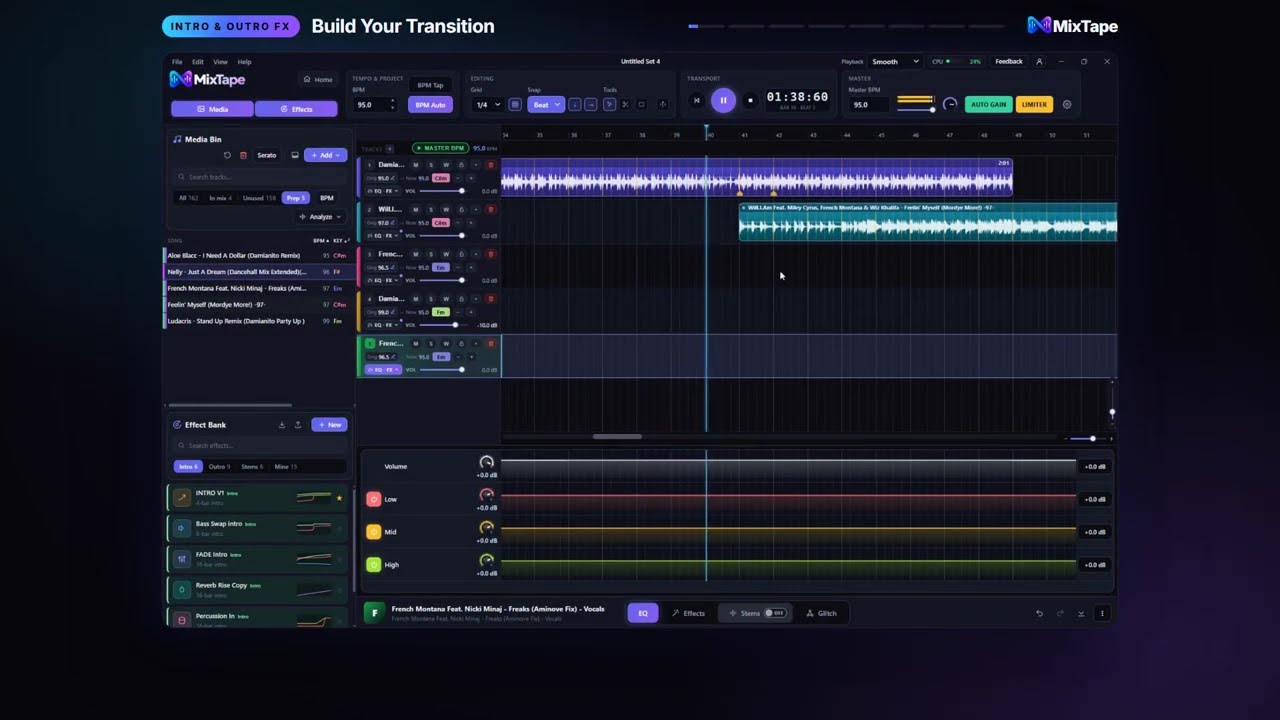
Chapters
- 0:00 Building the Transition with Outro FX
- 0:22 Selective Stems: First Track
- 0:28 Muting Drums for a Smooth Transition
- 0:39 Separating Stems on the Incoming Track
- 0:47 Muting Bass
- 0:55 Dragging Vocals to Another Track
- 1:05 Trimming and Duplicating Vocals
- 1:25 Building the Vocal Arrangement
- 1:38 Reverb, Echo & Spiral FX Automation
What You’ll Learn
- Prepare the outgoing song with an Outro effect
- Separate stems from a selected stretch of a song, not the whole track
- Mute the outgoing song’s drums and the incoming song’s bass
- Drag a vocal stem onto a track of its own
- Trim and duplicate vocal clips into a repeating phrase
- Shape the transition with Reverb, Echo and Spiral automation
Step by Step
- Prepare the transition. Drag an Outro effect from the Effect Bank onto the outgoing song, where the transition will happen.
- Select a stretch and separate it. Hold Ctrl (⌘ Cmd on a Mac) and drag across the first song’s waveform where the songs will overlap, then press Separate Stems. Only that stretch is separated into vocals, drums, bass and other, on your own computer and in the background, while you keep working. The first time, MixTape offers to download what separation needs, once.
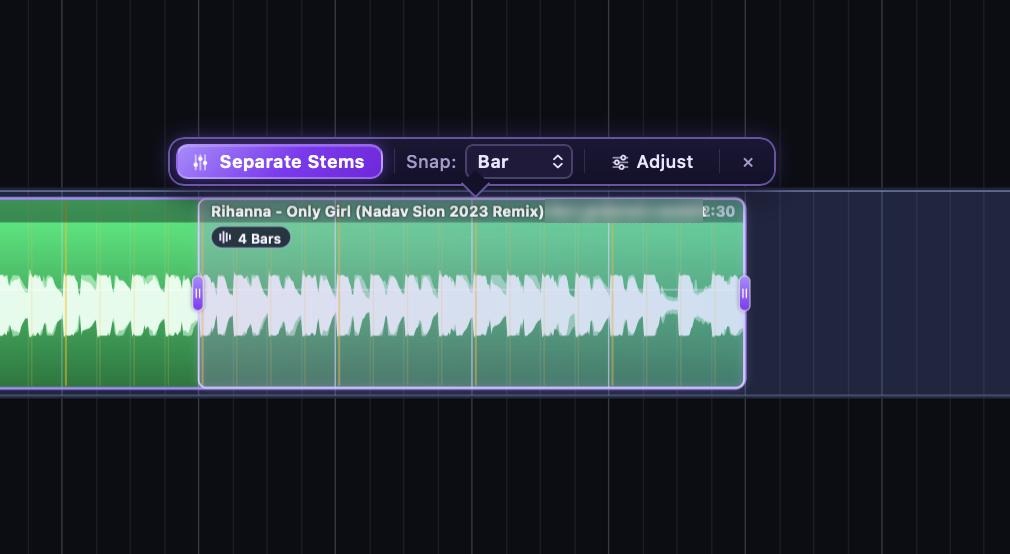
- Mute the drums. Each separated stretch has its own stems, shown as coloured blocks along the bottom of the clip. Click a block to open the stretch’s stem controls, and mute the outgoing song’s drums there only: the rest of the song plays as it is, and the incoming beat has room.
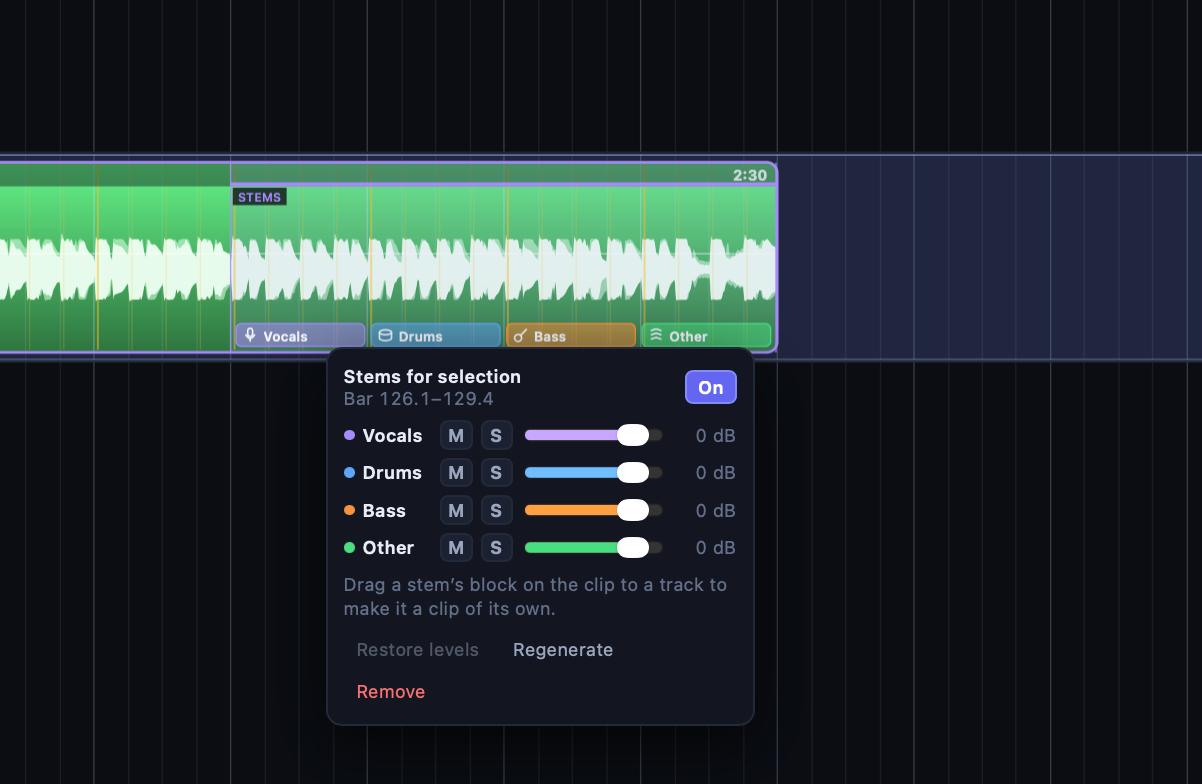
- Prepare the incoming song. Separate a stretch of the second song the same way and mute its bass, so the two basslines don’t clash while the songs overlap.
- Move the vocals to another track. Drag the vocals block onto another track, or below the last one for a new track. It becomes a clip of its own, in time with the original, which stays as it was.
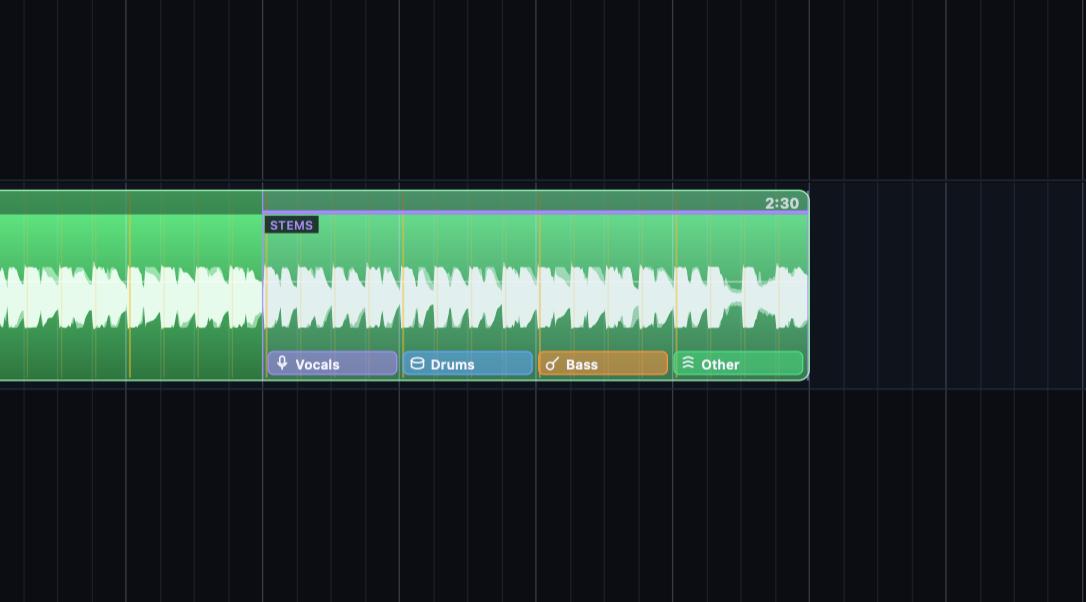
- Trim and duplicate the vocals. Trim the vocal clip down to the phrase you want, then duplicate it (Ctrl+D) to make it repeat.
- Build the arrangement. Line the repeated phrases up on the beat across the transition, against both songs, so the vocal carries the listener from one song into the next.
- Shape it with FX automation. Open the track’s EQ · FX and draw Reverb, Echo and Spiral in their automation lanes: click a lane to add a point, then drag it. Build tension into the change, then let it fall away.
Learn More
More Tutorials

MixTape Tutorial: Your First DJ Mix
Build your first DJ mix in MixTape: start a project, bring in your Serato crates, place songs on their first kick, add Intro and Outro effects and ease the BPM.
- Create a new MixTape project
- Optionally bring in your tracks and crates from Serato DJ
- Add tracks to the Media Bin
- Place songs on the timeline
Ready to Build Your Own Mix?
Put these techniques into practice with MixTape, the timeline DJ studio for Windows and Mac.
Free during the beta. Registration and approval required.